
To enable IPv6 or a cross-site IP on a Windows server image, follow these steps:
If you don't have an IPv6 native ISP, you can log in via your cross-site IP by installing the WireGuard client on your local system.
Step 1:
Open a support ticket letting us know that you are configuring a cross-site IP on your server. Include the hostname of the server. We will reply with an IP address that will be used during the configuration.
From the VPS management portal, locate your VPS and select VNC to access serial console management. Here, you can set the IPv6 address.
Step 2:
Log in and find your network adapters. Make changes to the only interface there by clicking on properties.
Step 3:
Click on Internet Protocol Version 6 (IPv6), then select properties.
Step 4:
Using the /64 IPv6 assigned to your instance, fill in the requested details. Use Google's DNS:
-
2001:4860:4860::8888
-
2001:4860:4860::8844
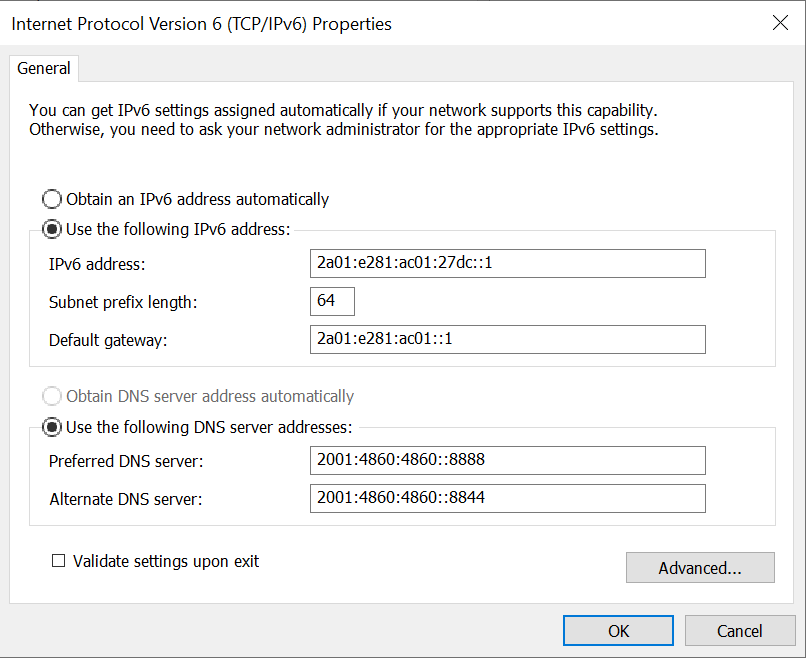
Step 5:
Your Windows server will now have full IPv6 connectivity. Sites like SiteHUB and many other ISP-supported and provider-supported websites that utilize IPv6 will now be accessible.
If your ISP supports IPv6 natively, you can access your VPS via RDP (Remote Desktop Protocol) using your IPv6 address once you've enabled this feature.
Additionally, WireGuard is a dual-stacked site, meaning it supports both IPv4 and IPv6. You can access their website with your IPv6-enabled Windows server. From there, download WireGuard and open it to begin configuring your cross-site IP.
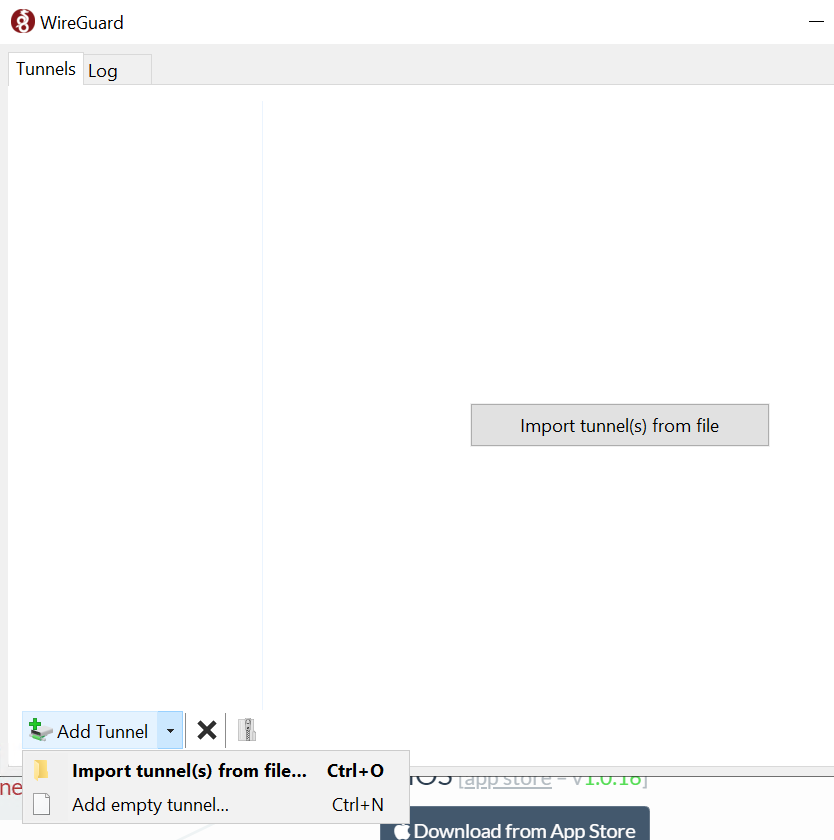
Click Add empty tunnel
Step 6
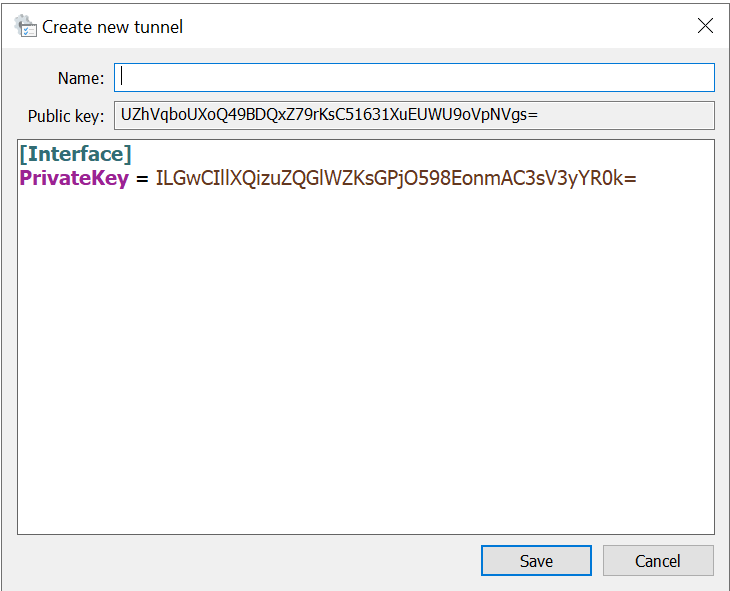
You will now see both a private and public key.
Make sure to note the public key, as you'll need to provide it to support to complete the setup. Fill in the rest of the file with the following details:
[Interface]
PrivateKey = ILGwCIllXQizuZQGlWZKsGPjO598EonmAC3sV3yYR0k=
Address = 172.x.x.x/8  # IP assigned in support ticket
ListenPort = 51820
MTU = 1412

[Peer]
PublicKey = gHgY37b2DfpgO2XGfMkWJyS524UYOpj4L2C8YuBAhUc=
AllowedIPs = 172.0.0.0/8
PersistentKeepalive = 1
Endpoint = [2607:5300:60:2e20:df:31f9:668:1]:51820  # This is the IPv6 endpoint. For cross-site functionality, use the IPv4 endpoint 144.217.129.163
Step 7
Respond to the support ticket opened in step 1 with your public key. Our team will complete the set up on our side, respond and close the ticket.
Your server will now have internet connectivity and cross-site capability. You can also log into RDP with your cross-site IP if a client has already been configured on your local system.